Checked 8 October 2026
How to export a CSV from ASB
A CSV is a plain spreadsheet of your transactions. Budget apps, spreadsheets and accountants can all read it. Here's how to get one from ASB internet banking (asb.co.nz), on a desktop browser.
Walked through step by step in real ASB internet banking.
Steps
- Accounts, then the account you want. You land on its Transactions tab.
- Set the From and To dates above the list (To can stay as Today), then click Apply filter. The last two or three months is a good first import.
- Above the transaction list on the right, click Download (next to Print).
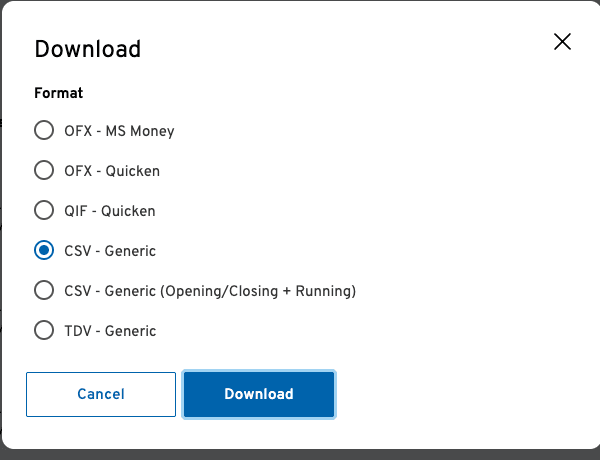
- Under Format choose CSV - Generic, then click Download. The file saves to your Downloads as Export followed by the date and time, for example Export20261008075500.csv.
Worth knowing
- ASB's file starts with a few lines about the account and date range before the transactions. KeaBudget skips those for you.
- Each ASB row has a Payee and a Memo. Both go into the description, so a merchant rule can match either.
- The other formats in that list (OFX, QIF, TDV) are for desktop accounting software and will not import here.
Then drop it into KeaBudget
KeaBudget reads ASB's columns for you, sorts each shop into a category, and skips anything you've already imported. Free, made in New Zealand.
Start using KeaBudget →Another bank? ANZ. More banks are added as they're checked.