How-to guide
How to import your bank's CSV
Download your transactions from any NZ bank as a CSV, bring them into KeaBudget, and import again later without getting doubles.
Updated 3 November 2026
Before you start
- A KeaBudget account with at least one account set up.
- Your internet banking login, on a computer. Most NZ banking apps on a phone can't export.
- About 5 minutes the first time.
Download a CSV from your bank
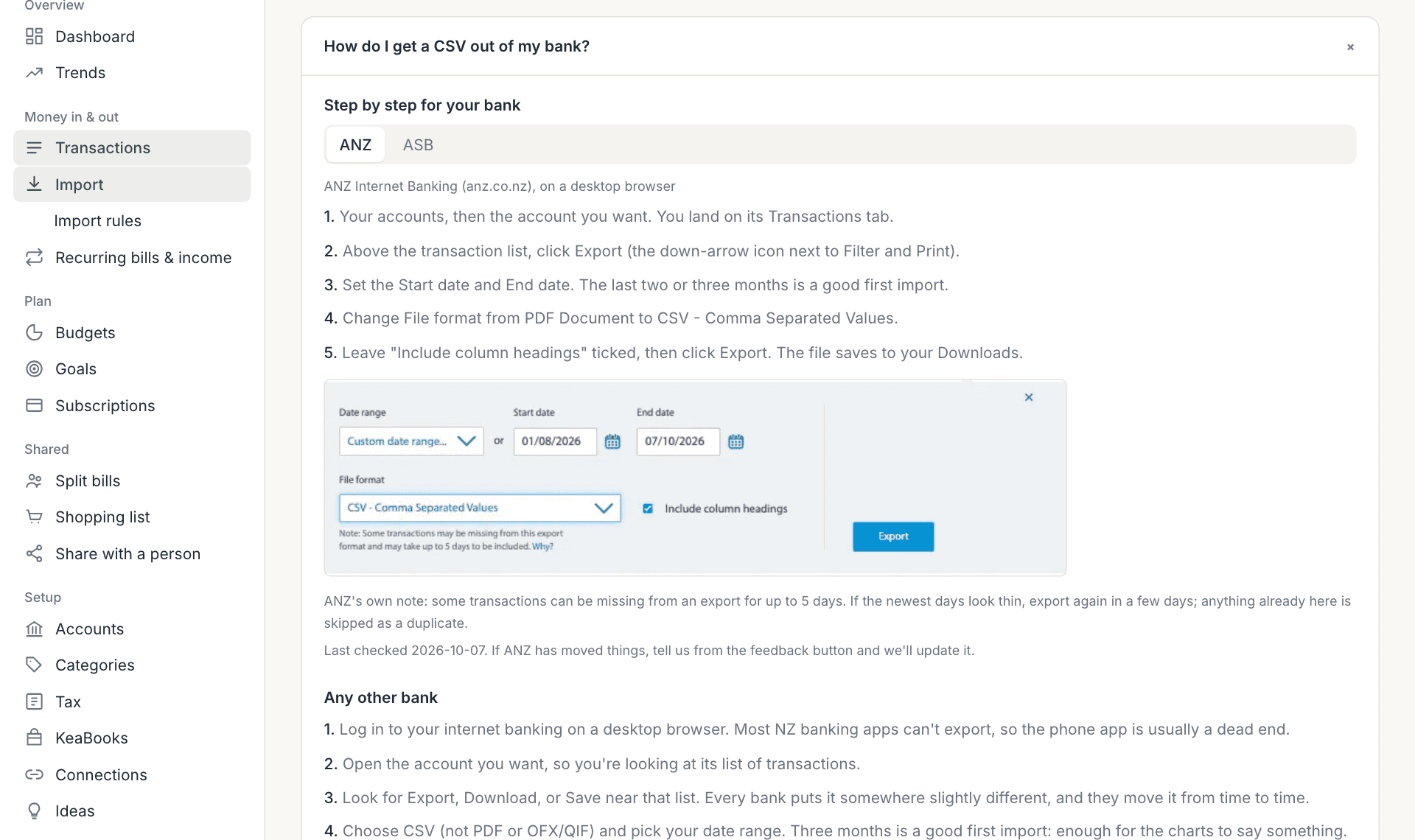
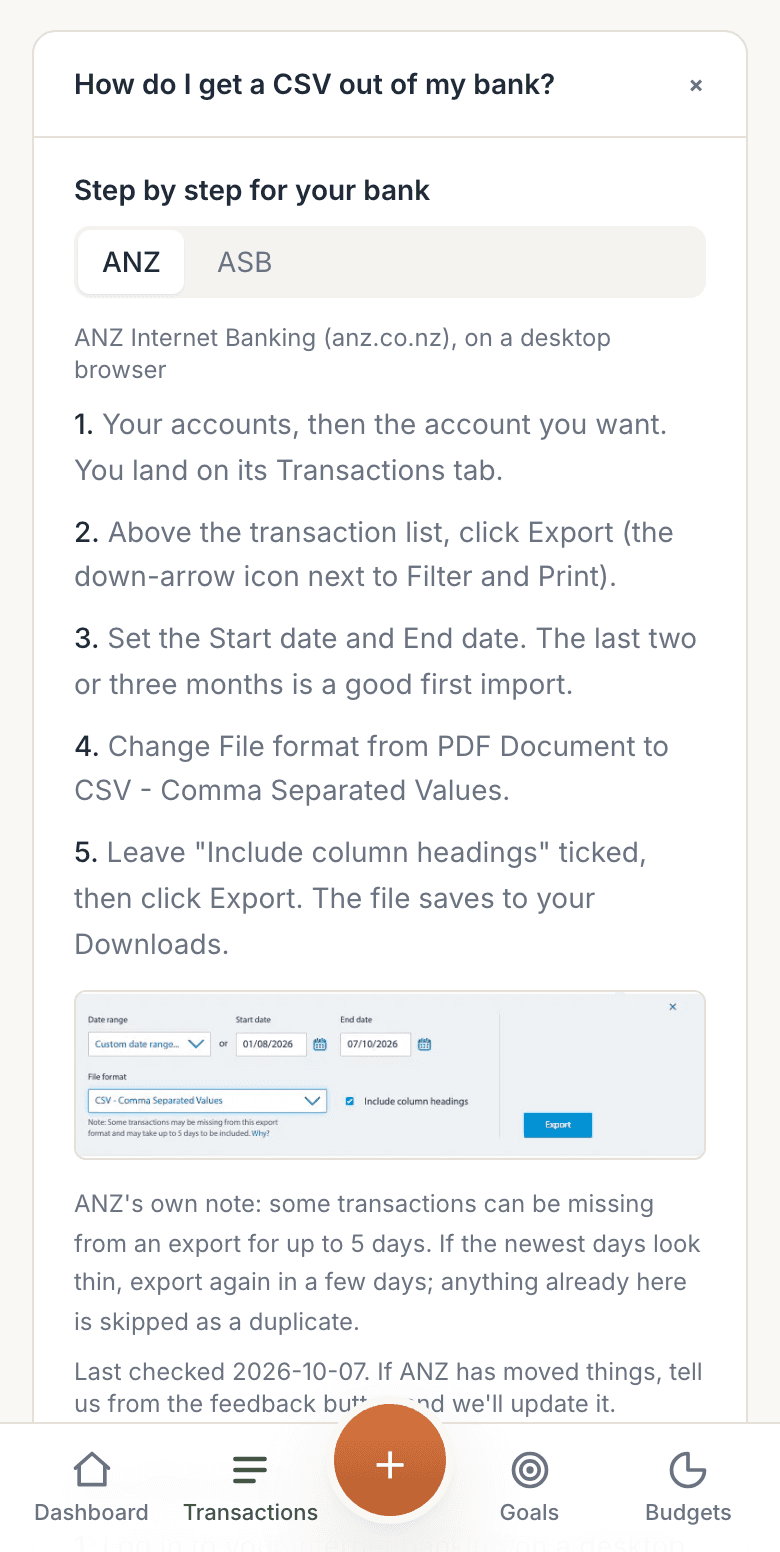
A CSV is a plain list of your transactions that most banks let you download. On the import page, open How do I get a CSV out of my bank? for step-by-step instructions with pictures for ANZ and ASB, and general steps for any other bank.
For any bank, it goes like this:
- Log in to internet banking on a computer.
- Open the account you want, so you can see its list of transactions.
- Look for Export, Download or Save near that list.
- Choose CSV (not PDF, OFX or QIF) and pick your dates. Two or three months is a good first import.
Load the file into KeaBudget
- Open Import in the menu.
- Under Your bank export, tap Choose file and pick the CSV, or drag the file onto the box.
- You'll see ✓ Loaded and the file name, with its contents in the box below.
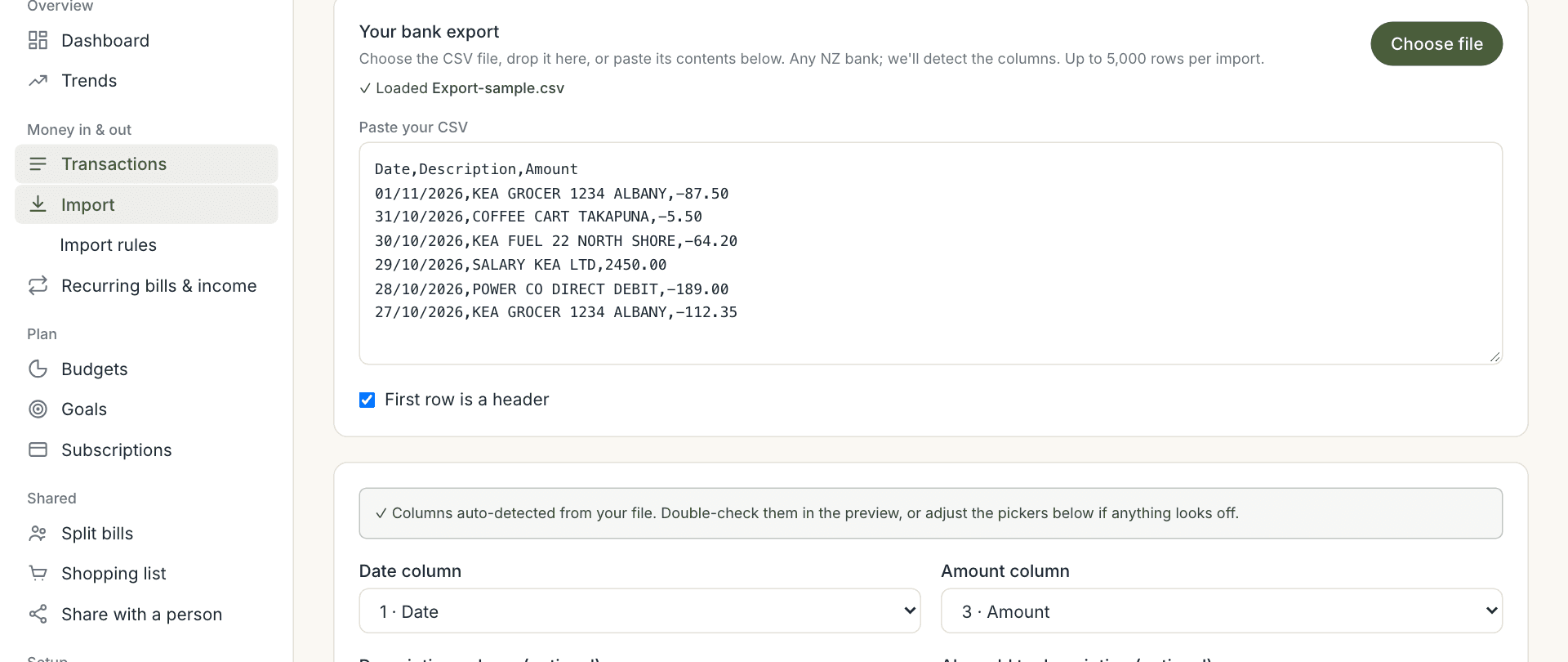
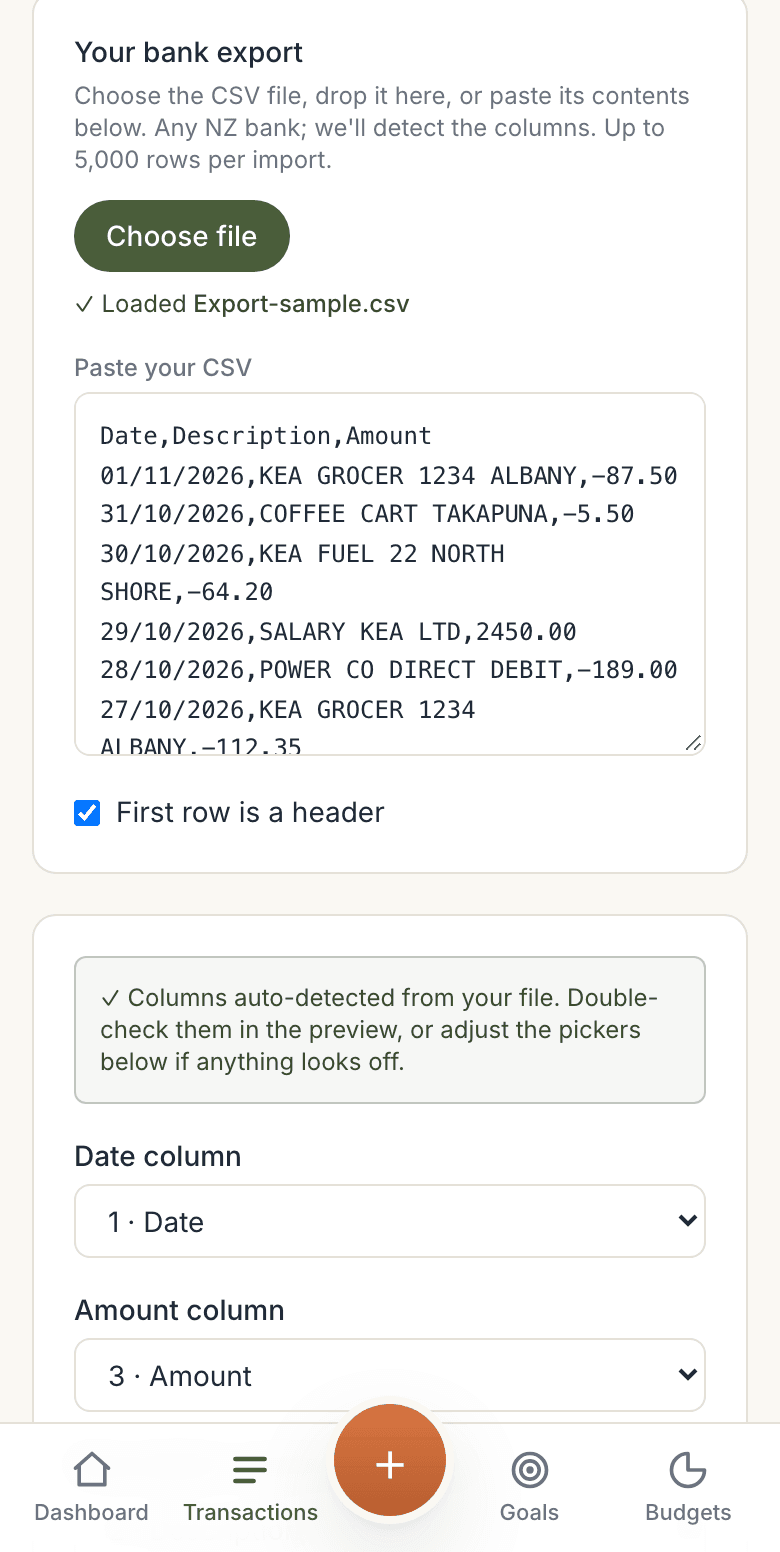
The file is read in your browser. Nothing is saved to KeaBudget until you tap Import at the end, so you can't break anything by trying.
Check the columns
KeaBudget works out which column is the date, the amount and the description, and tells you: ✓ Columns auto-detected from your file. Usually you don't need to change anything here.
Two settings are worth a look:
- Default category for every row: leave it on Sort out later if the file has a mix of spending. Those rows go to Other, ready to sort from Transactions.
- Default account for every row: pick the account this statement is from, if you have more than one.
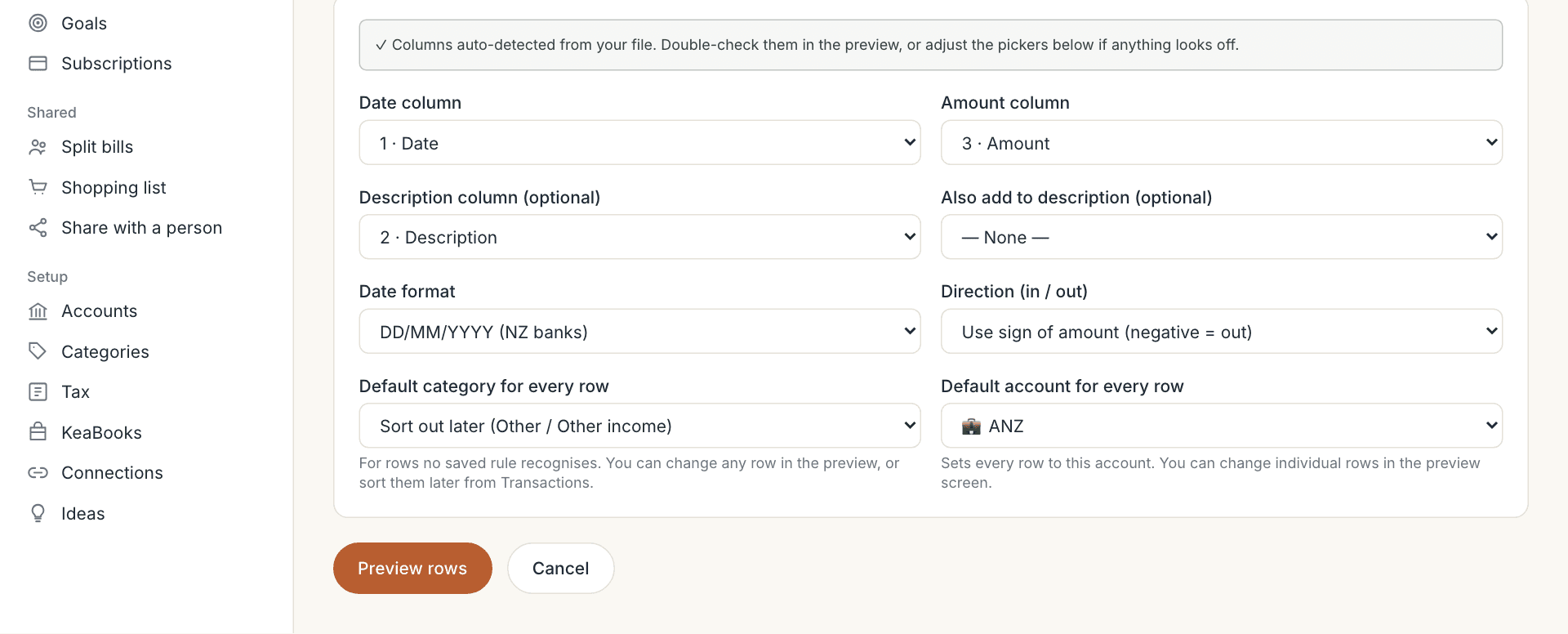
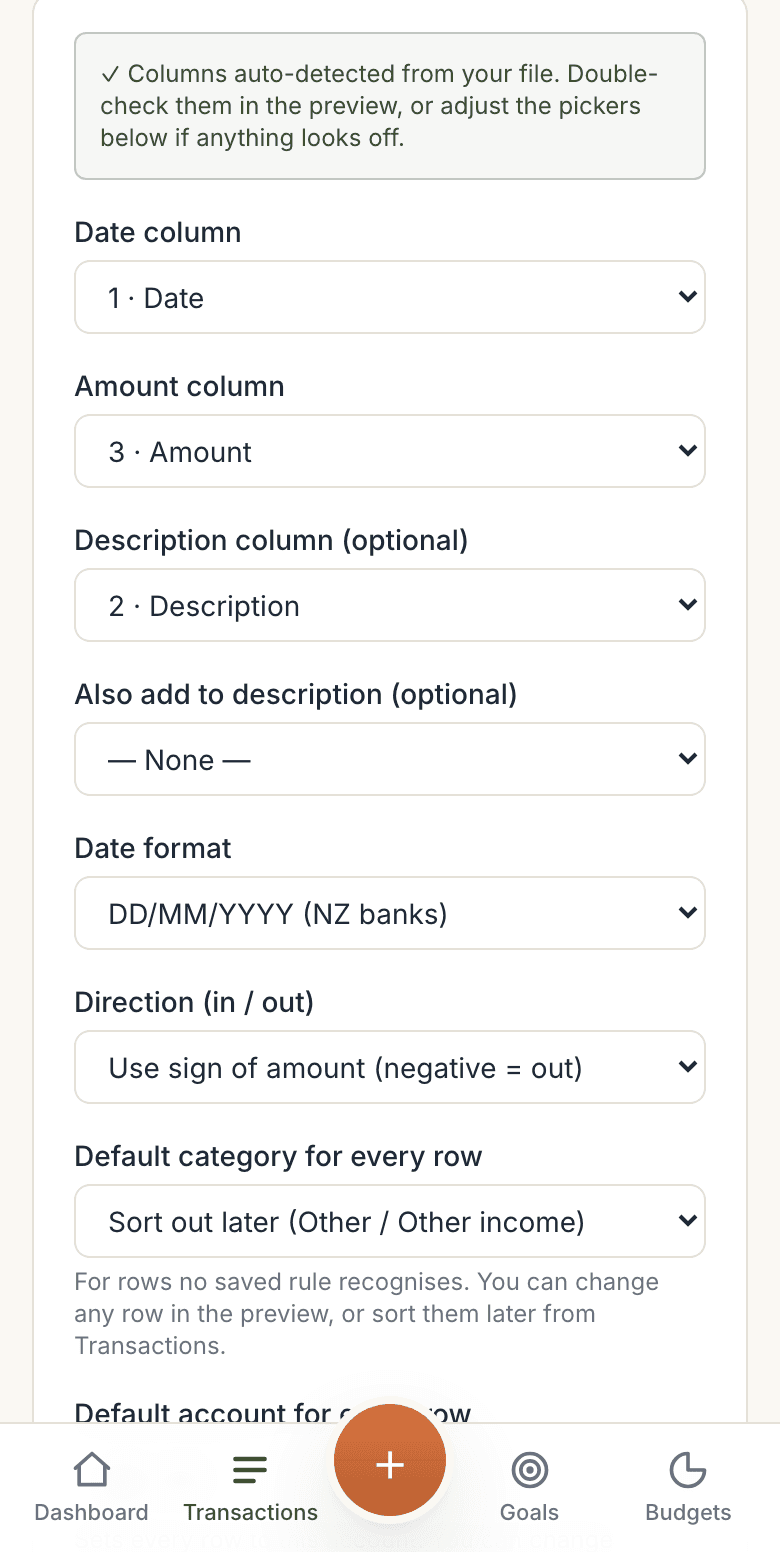
Then tap Preview rows.
Preview, then import
The preview shows every row as it will be saved. Before you import you can:
- Untick any row you don't want.
- Change a row's Type (In or Out), Category or Account.
Leave Remember the merchants I categorise ticked. When you change a row's category, KeaBudget remembers that merchant and fills it in on your next import.
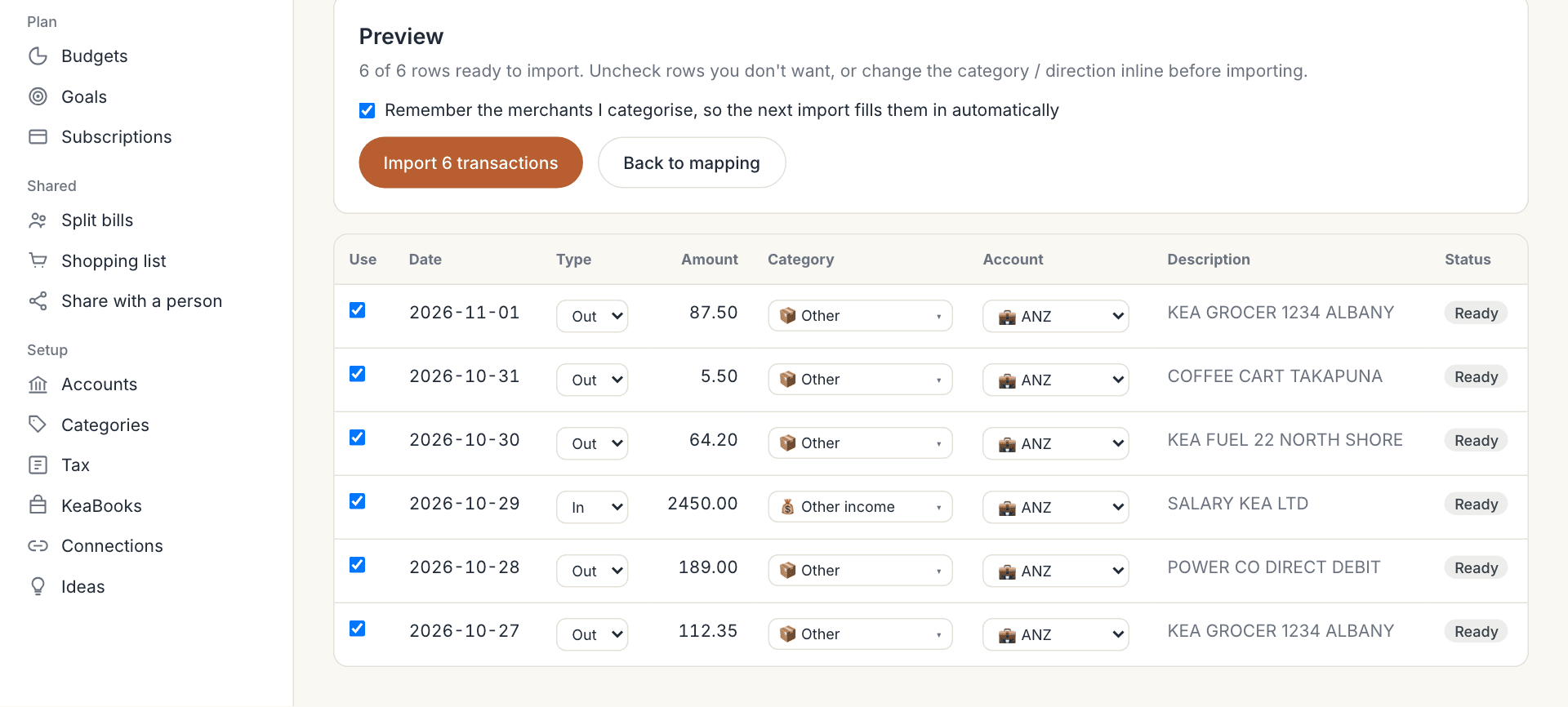
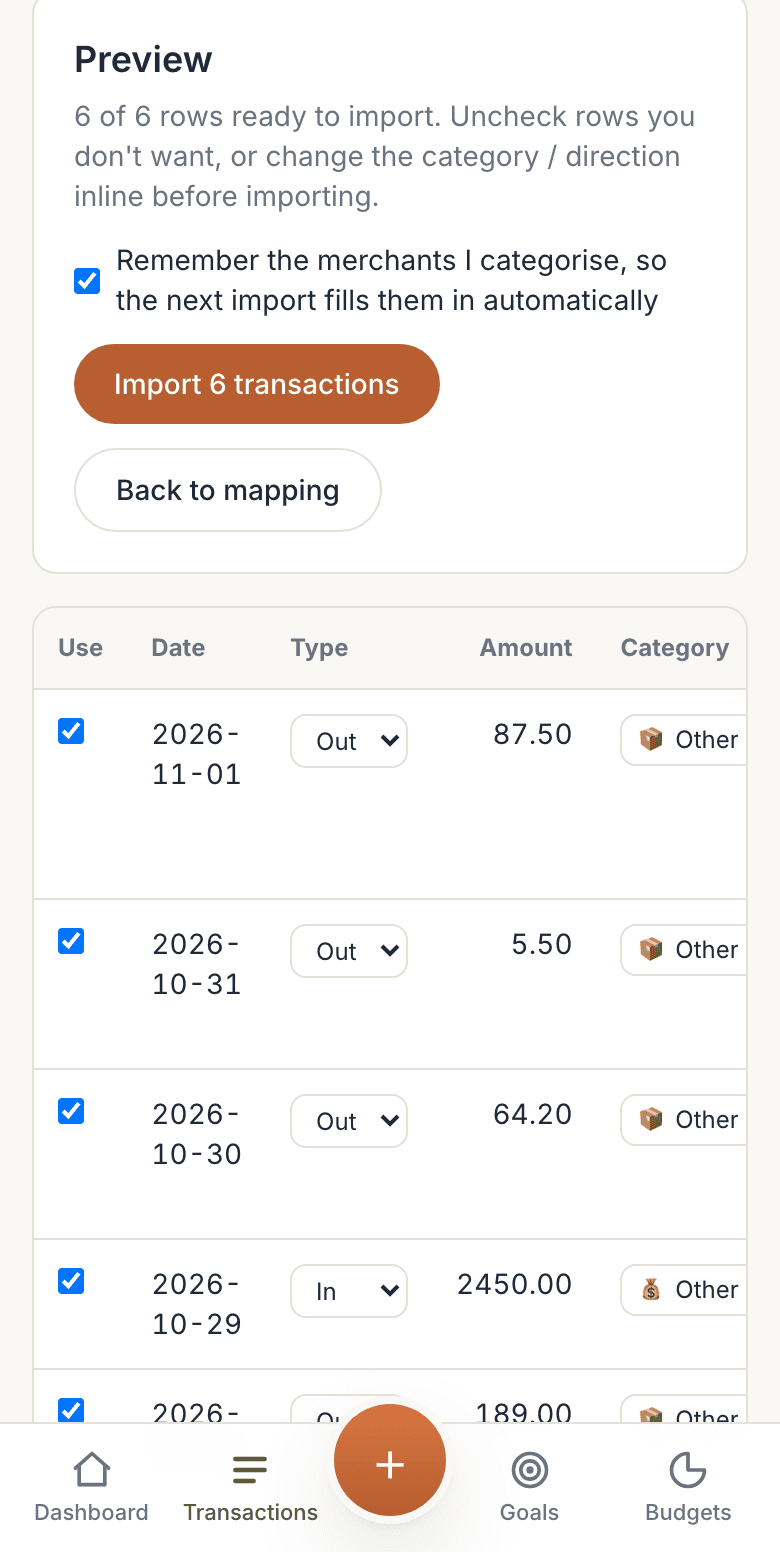
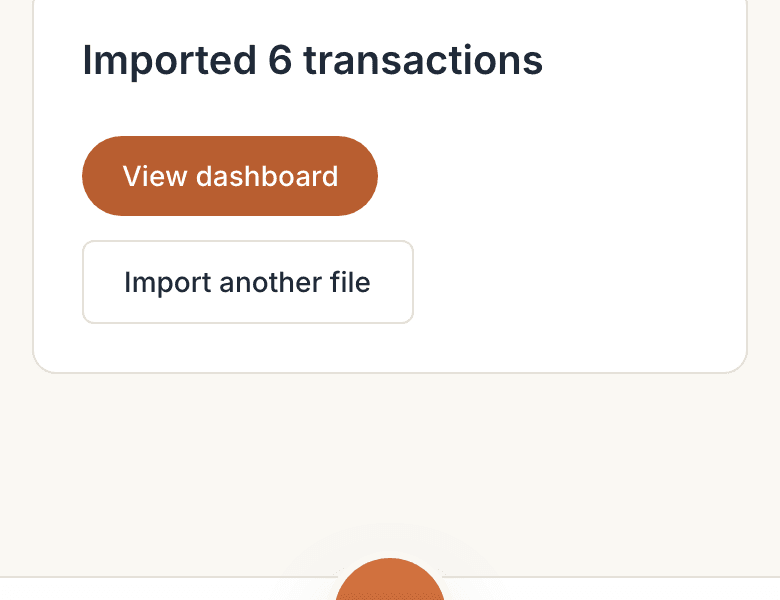
Tap Import 6 transactions (the number matches the ticked rows). You'll see how many came in:

Import again next time, without doubles
Next time, export from the date of your newest transaction onwards. The import page tells you that date: Your newest transaction here is dated…
Overlapping by a few days is fine. Any row with the same date, amount and description as one you already have is flagged and unticked, so it isn't added twice:
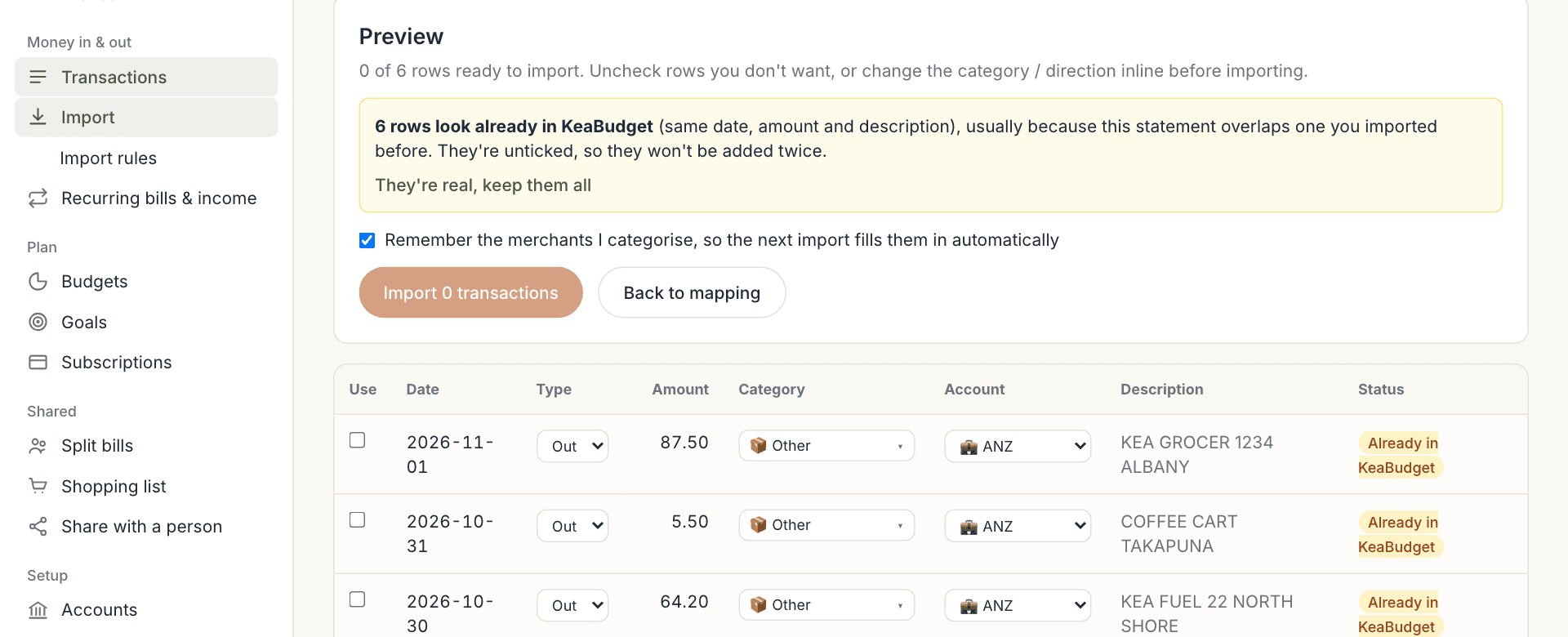
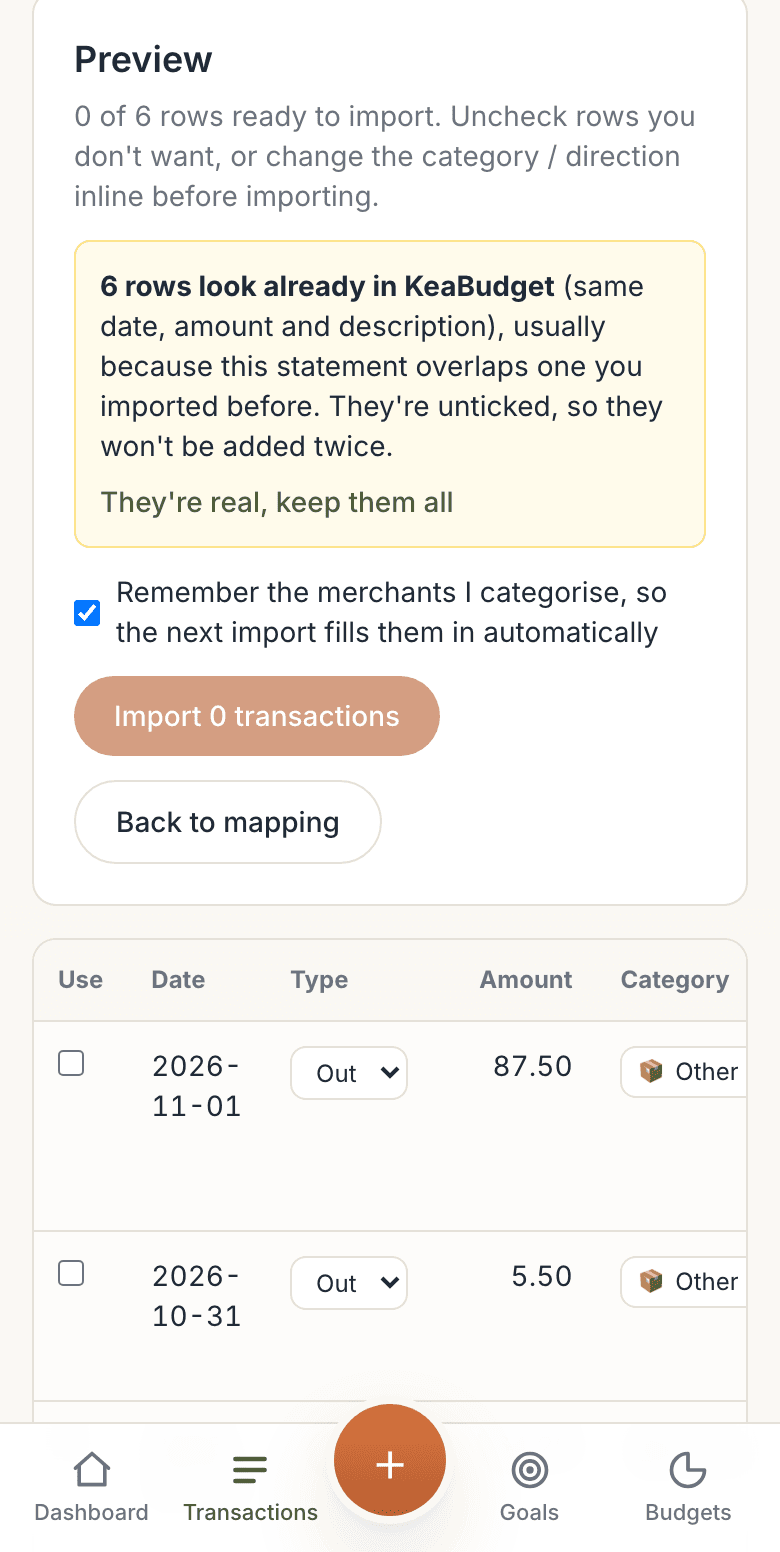
If they really are new (two identical coffees on the same day, say), tap They're real, keep them all, or tick just the ones you want.
Teach it your merchants
Every time you correct a category during an import, KeaBudget saves a rule, for example "description contains countdown → Groceries". The next import fills those in for you, marked 🧠 auto.
To see, add or remove rules, open Import rules in the menu (under Import).
You don't need to tidy the file
Bank exports all differ a little. These are handled for you: any column order, with or without a header row; the usual date formats; separate Debit and Credit columns; lines about the account at the top of the file; balance and fee columns.
Troubleshooting
| Message or problem | What to do |
|---|---|
| That's a spreadsheet. | Export again and choose CSV, or open it and save it as CSV. |
| That's a PDF statement. | Banks offer a CSV export too, usually next to the PDF option. |
| That file is bigger than 2 MB. | Export a shorter date range, or split it into two files. |
| A very long file imports nothing. | Each import takes up to 5,000 rows. Export a shorter date range and import it in parts. |
| A row says Couldn't parse date. | Change Date format on the columns step to match your file, then preview again. |
| Money in shows as Out (or the other way). | On the columns step, change Direction (in / out). If your file has a Debit/Credit column, choose Use a Debit/Credit column. |
| Money moved between my own accounts is counted as spending. | After the import, KeaBudget lists possible transfers. Tap Mark as transfers so they aren't counted twice. |
| My pay or a bill shows twice. | A recurring item added it on the day and your import brought the real one. In Recurring bills & income, untick Add it to my transactions on the day on that item, or use Stop adding them on the day. |