How-to guide
How to set up your recurring bills and income
Enter rent, power, subscriptions and pay once, see what's coming up, get a reminder before bills are due, and handle two incomes paid on different cycles.
Updated 2 November 2026
Before you start
- A KeaBudget account with at least one account.
- Your regular bills: the amount, how often, and the next date each one is due.
- Your pay: the amount after tax, how often, and your next payday.
Add a recurring bill
- Open Recurring bills & income in the menu and tap + Add.
- Leave it on Money out.
- Fill in the Amount, Category, Account and, if you like, a Description such as "Power bill".
- Starts on: the next date the bill is due.
- How often: Weekly, Fortnightly or Monthly.
- Add it to my transactions on the day: leave it ticked if you type your spending in. Untick it if this bill comes in from your bank import, so it isn't counted twice.
- Tap Add recurrence.
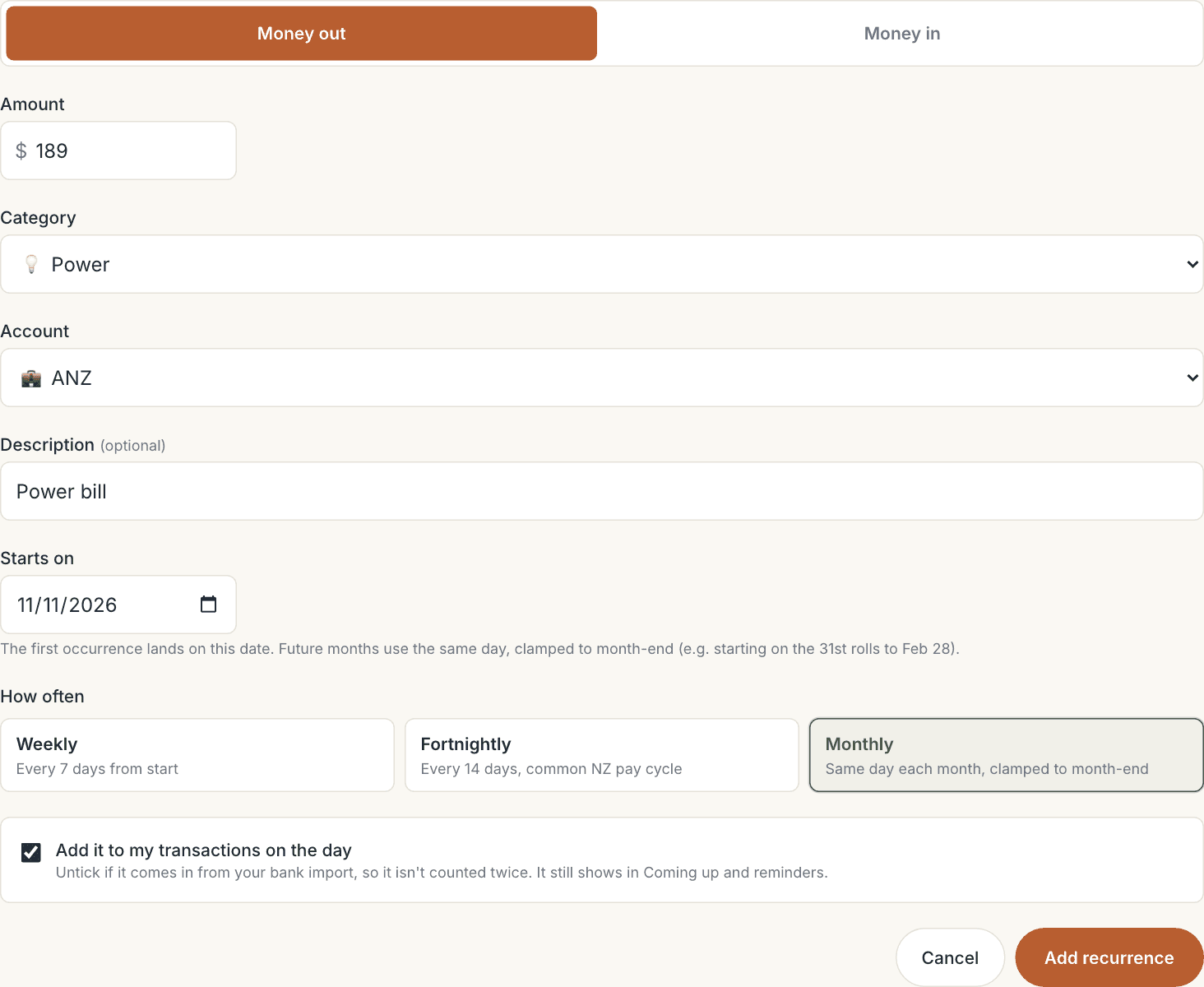
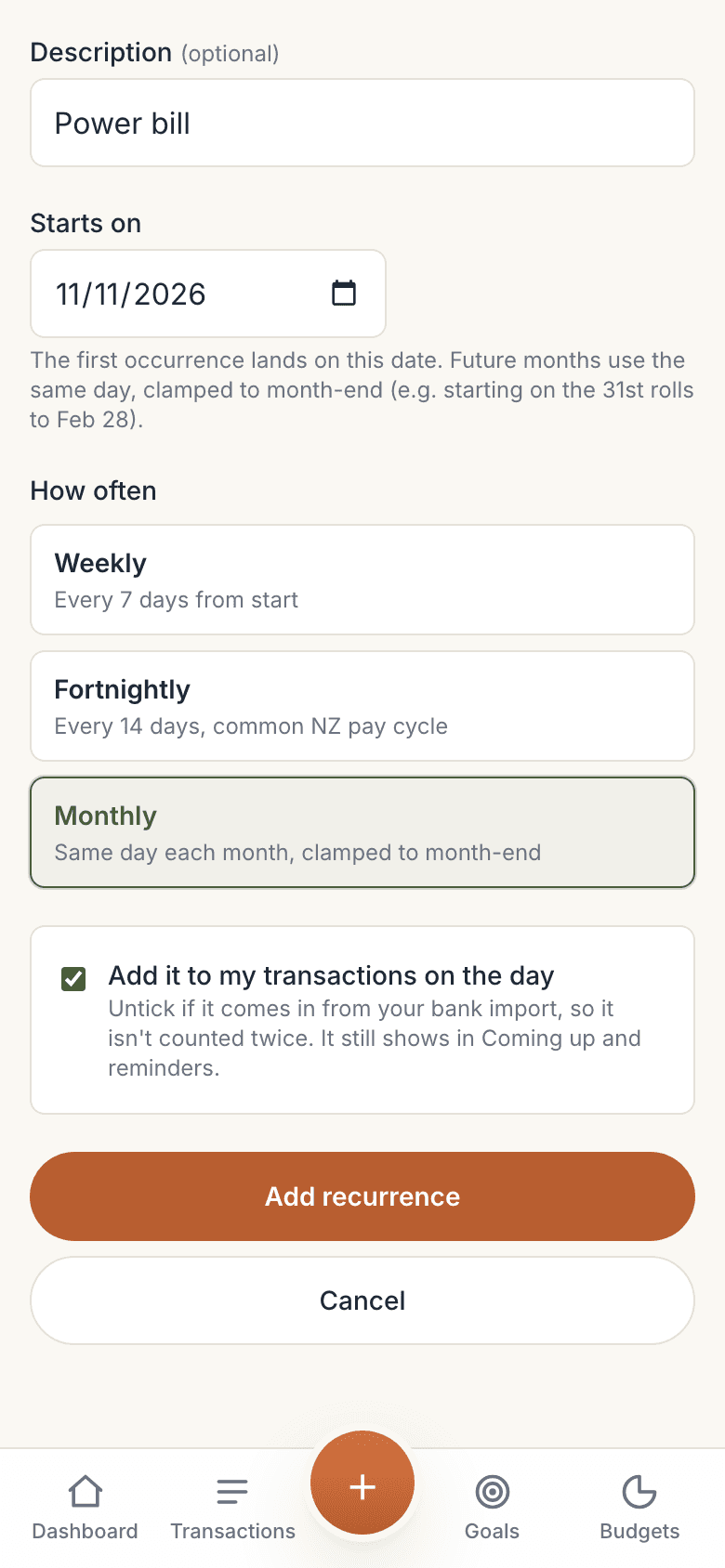
A monthly bill on the 29th, 30th or 31st lands on the last day of shorter months, then goes back to its usual day.
Add your income the same way
Tap + Add again and choose Money in. Use your pay after tax, how often you're paid, and your next payday as Starts on.
Every recurring income counts as a pay. Tick This is my main pay for the one your budgets should follow.
Two incomes on different pay cycles
Add each pay as its own item, each with its own frequency and day: your wages weekly on Thursdays and your partner's fortnightly on Tuesdays, for example. Budgets → Your pays lists them all. You get a check-in on every payday, and the dashboard shows your next pays. The full walk-through is in How to add more than one pay.
See what's coming up
Your dashboard shows Coming up · next 30 days: each bill and income with its date and how far away it is, and the total due out underneath.
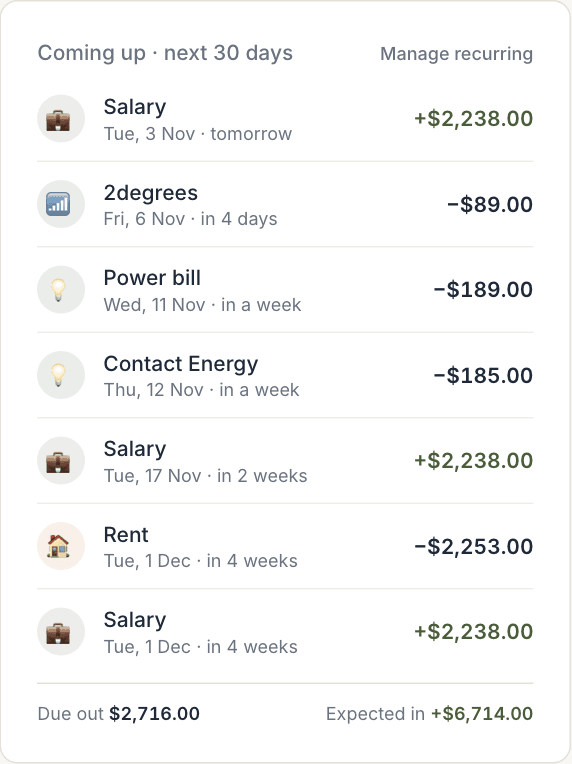
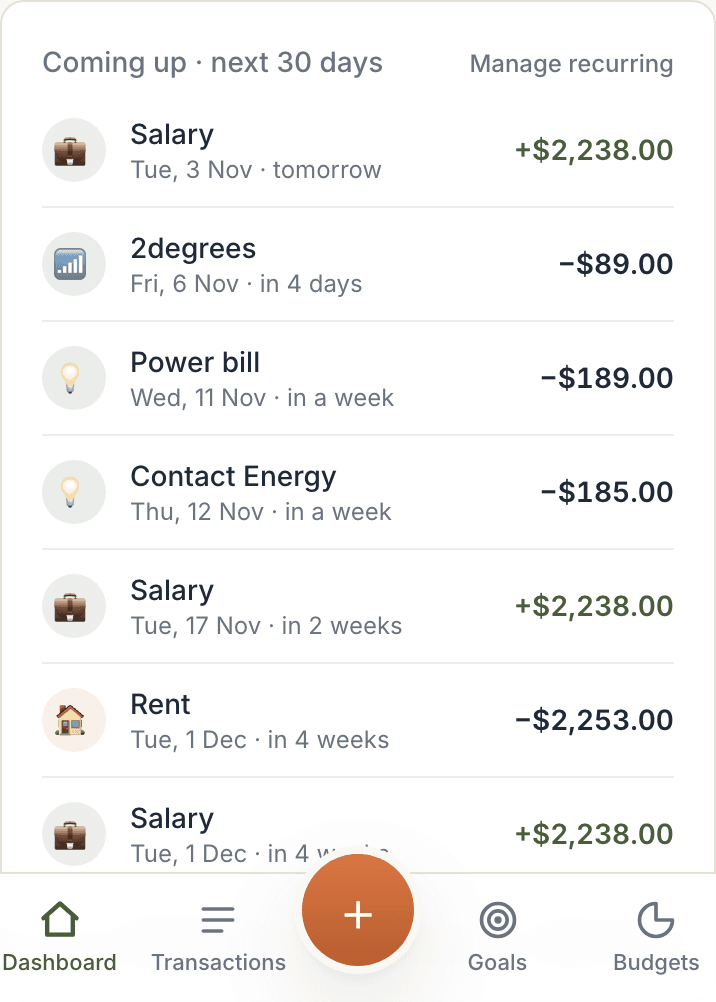
On the day, KeaBudget adds the transaction for you. You'll find it with your other transactions the next time you open KeaBudget, and the bill's row in Recurring bills & income shows last posted with the date. For an item with Add it to my transactions on the day unticked, the row says comes in with your import instead.
Get a reminder before bills are due
The reminder settings are at the top of Recurring bills & income:
- Email reminders: on by default.
- Push notifications: on this device. On iPhone, add KeaBudget to your Home Screen first.
- Remind me: from On the day to 7 days before. The default is 3 days before.
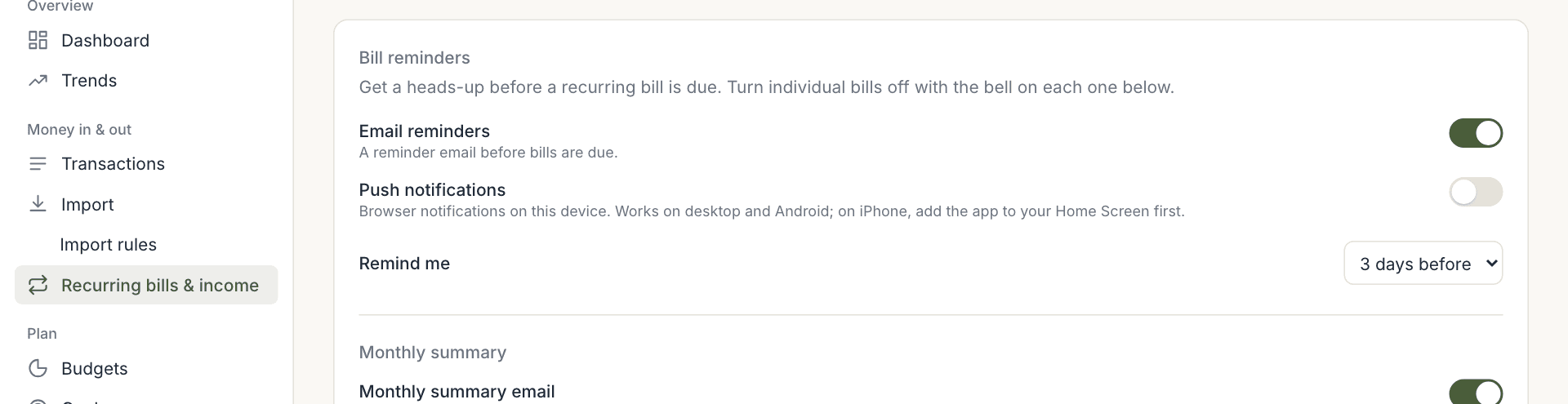
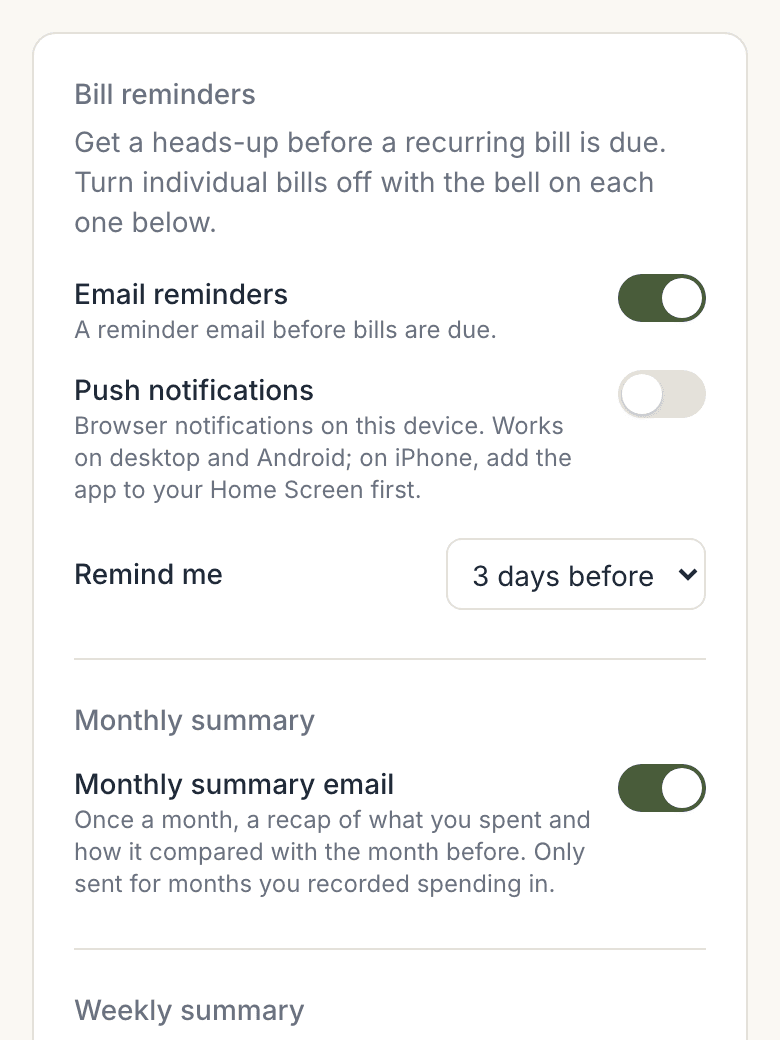
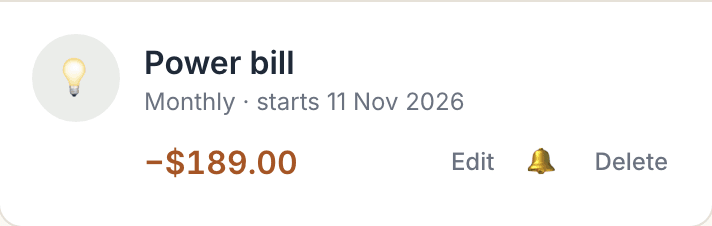
To stop reminders for one bill without deleting it, tap its bell. 🔔 means reminders are on, 🔕 means off.

Change or remove one
- Change it: tap Edit, change anything, then Save changes. Changes apply from the next time it goes in. Transactions already added stay as they are.
- Remove it: tap Delete, then Confirm. It stops going in from now on. Transactions already added stay, so your history is kept.
- A bill that has stopped for now: delete it, and add it again when it starts back. To keep it but stop the reminders, use the bell.
Worth knowing
- Reminders pause if you're away. If you haven't signed in for 4 weeks, bill reminders and payday check-ins stop. They start again the morning after you next sign in.
- Big yearly bills like rego, rates and insurance are better as lumpy bills in Goals. KeaBudget then sets a little aside each pay, rather than one big hit on the day.
- Subscriptions shows your recurring spending as a monthly and a yearly total, so it's easy to spot the ones you've forgotten about.